You can upgrade or downgrade your ThreadSignals plan anytime through your Stripe billing portal.
Whether you’re scaling up for more Signals and credits or switching to a smaller plan, all plan changes are handled securely through Stripe and take effect within minutes.
1. How to Change Your Plan
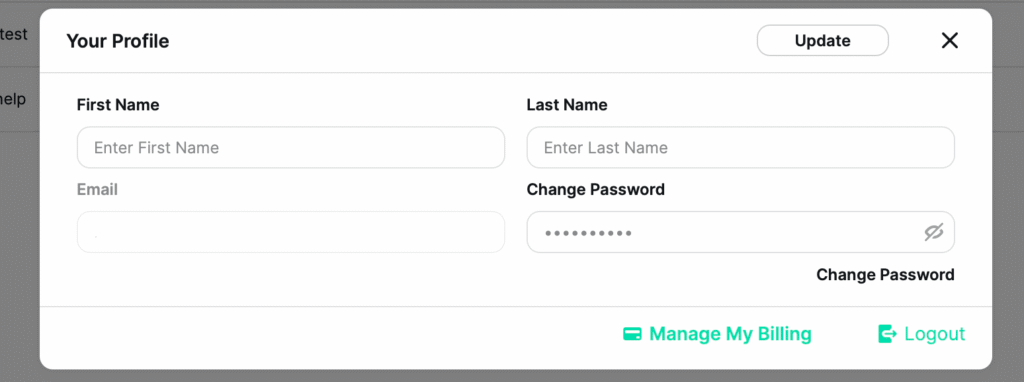
Click your profile picture in the bottom-left corner of your dashboard.
In the Account Settings window, scroll to the bottom and click “Manage Your Billing.”
This opens your Stripe billing portal in a new tab.
From there, you can:
Upgrade to a higher plan
Downgrade to a lower plan
View or manage payment methods and subscription details
All plan changes are processed securely through Stripe and reflected in your ThreadSignals account shortly after confirmation.
2. What Happens When You Change Plans
Upgrading Your Plan
When you upgrade, your account updates instantly—you’ll see your new plan limits and available credits within minutes.
Manual Signals from your previous plan remain intact.
You also unlock new features available at the higher level, such as the ability to create Scheduled Signals(available on Takeoff and Ascent).
Your billing cycle resets at the time of upgrade, and you are charged for the new plan immediately.
Downgrading Your Plan
When downgrading, your account will automatically adjust to fit the limits of your new plan.
From Ascent → Takeoff: Your total Signal capacity will reduce from 50 to 10. Only your most recent 10 Signals will remain; older ones will be deleted permanently.
From Takeoff or Ascent → Launchpad: You will lose access to Scheduled Signals, as Launchpad only supports manual Signals. Only your most recent 3 manual Signals will transfer over, matching the Launchpad plan limit. All other Signals (manual or scheduled) will be deleted automatically.
Your billing cycle also resets when downgrading, and you’ll pay for the new plan at the time of change.
3. Viewing Your Current Plan
You can always see which plan you’re on in two places:
Next to your username at the bottom-left corner of your dashboard.
Inside your Stripe billing portal, which lists your active subscription and renewal date.
Pro Tip
If you’re planning to downgrade, review your Signals first and make note of any you want to keep. Once your new plan takes effect, any deleted Signals cannot be recovered.