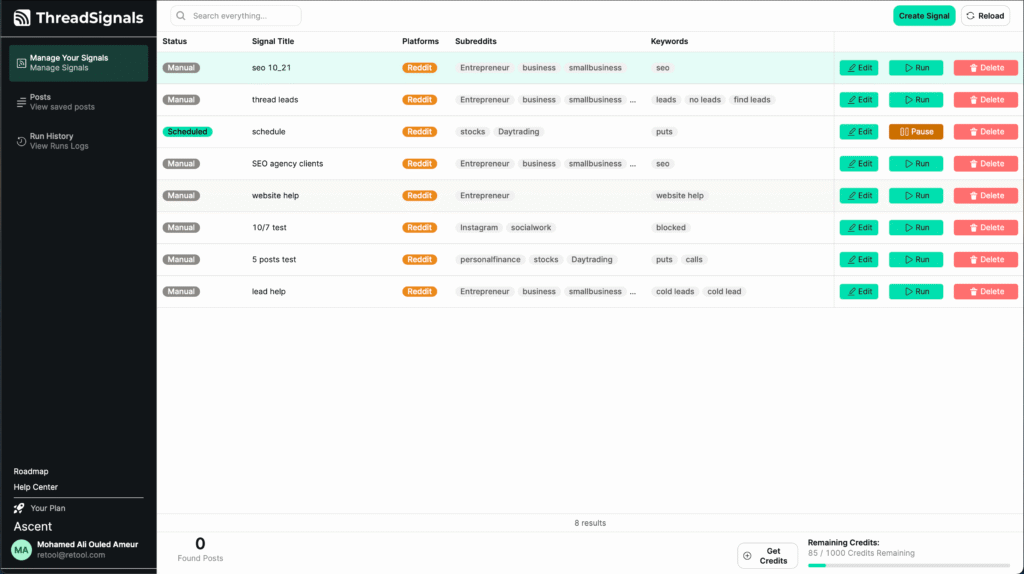
The Signals page is where all of your active and scheduled Signals are displayed. Each Signal has its own row of information, helping you quickly understand what it’s tracking, how it’s set up, and when it last ran.
You can also use the search bar and column sorting features to easily find, organize, and manage your Signals.
Search Bar
At the top of the Signals page, you’ll find a search bar that lets you quickly locate any Signal in your account.
You can type any term (such as a keyword, subreddit name, or Signal title), and it will search across all columns to show relevant results.
Signal Columns Explained
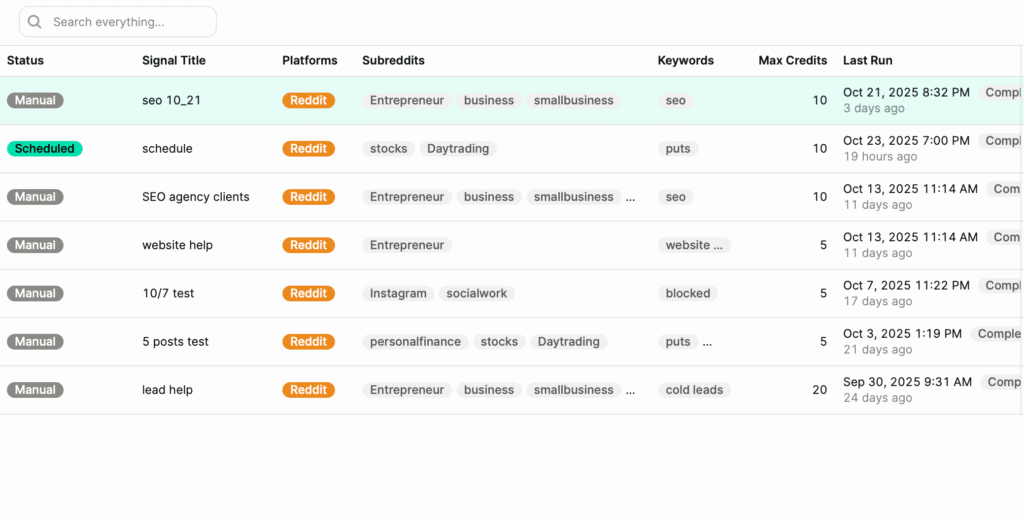
Each Signal row displays key details about how your Signal is configured and performing.
1. Status
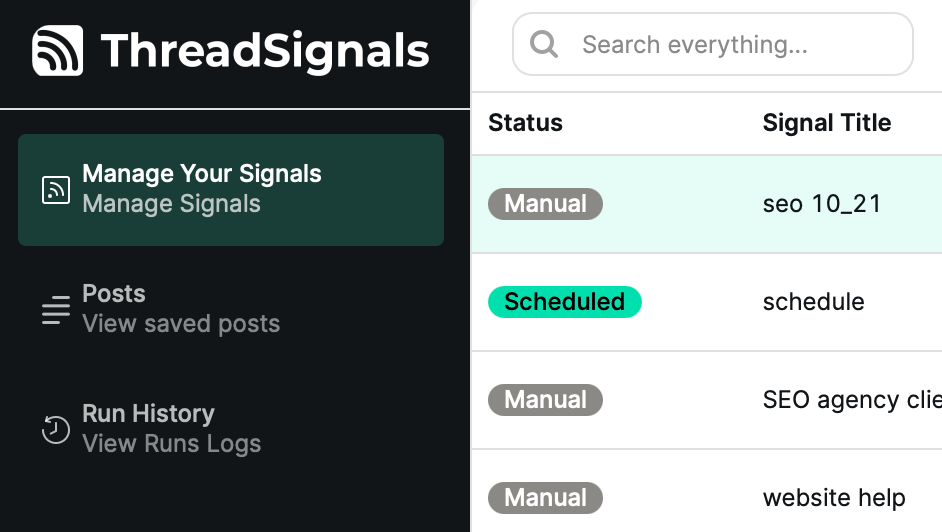
Shows whether the Signal is Manual or Scheduled.
Manual: Must be run manually by clicking the “Run” button.
Scheduled: Runs automatically based on your selected schedule (available on Takeoff and Ascent plans).
2. Signal Title
The name you gave your Signal during setup. A clear, descriptive title makes it easier to recognize what the Signal is tracking at a glance.
3. Platform
Displays the platform the Signal is listening to—currently Reddit, with additional platforms like Quora, X, and LinkedIn coming soon.
4. Subreddits
Lists the groups (subreddits) your Signal is monitoring.
Each group corresponds to a targeted audience where your keywords will be tracked. You can include multiple groups depending on your plan level.
5. Keywords
Shows the specific keywords or phrases the Signal is listening for within the chosen groups. These determine which posts will be collected when your Signal runs.
6. Max Credits
Indicates the maximum number of credits your Signal can use per run. This gives you full control over how many posts each run can collect and ensures you stay within your credit limits.
7. Last Run
Displays the date and time your Signal was last executed—whether manually or automatically. This helps you see how recently your Signals have been updated.
Sorting Columns
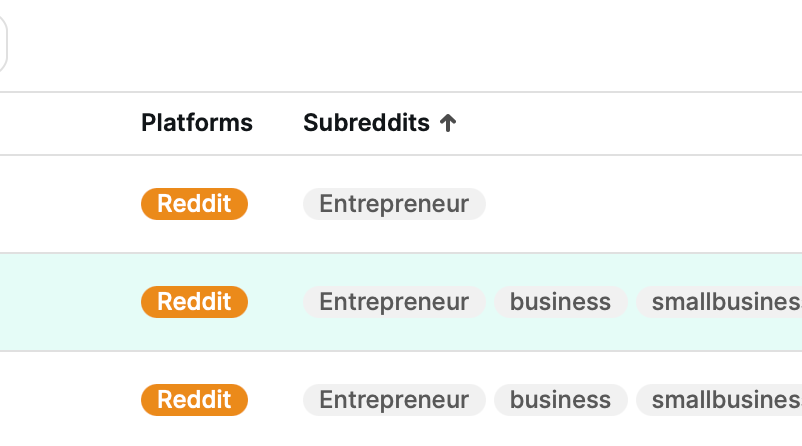
Each column header can be clicked to sort your Signals list by that category. For example, you can quickly sort by:
Most recently run
Alphabetical order of Signal titles
Highest or lowest credit limits
This makes it easy to organize and prioritize your Signals at any time.
Pro Tip
Use the search and sort features together to manage your Signals efficiently—for example, search by “SEO” and sort by “Last Run” to see which related Signals have the most recent results.