Hey there, need some help?
Hey there, need some help?
Hey there, need some help?
Help Center › Managing Signals › Creating Your First Signal
Creating Your First Signal
Signals are the heart of ThreadSignals. They let you track specific keywords and conversations across Reddit (and future platforms) to uncover real buying intent.
Creating your first Signal only takes a few minutes—and gives you complete control over which topics, groups, and keywords you want to monitor.
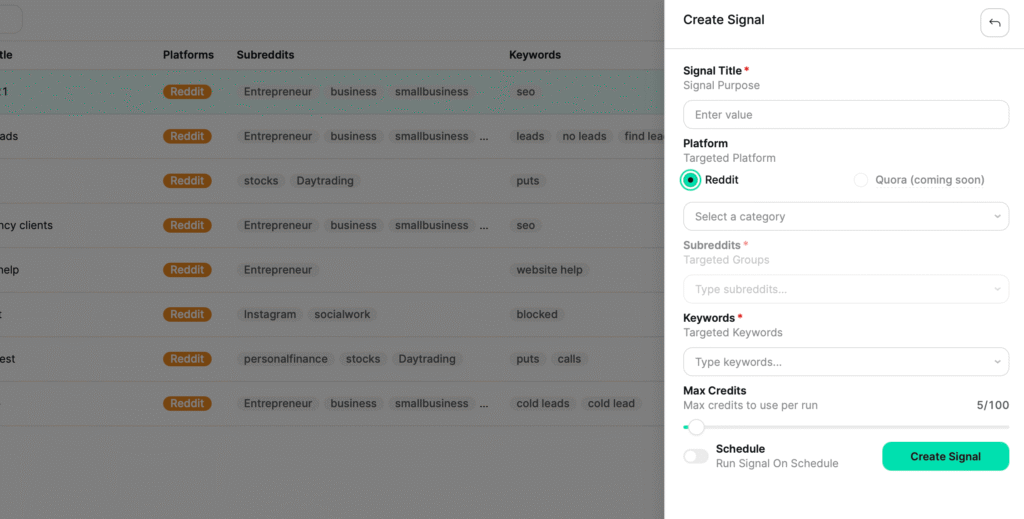
Step 1: Open the Signal Setup Panel
After signing in, you’ll land on the Signals page.
Click the “Create Signal” button in the top-right corner to open the Signal Setup Panel.
From here, you’ll fill out a few fields to define what your Signal should look for.
Step 2: Choose Your Platform
Currently, ThreadSignals supports Reddit as the primary platform, with Quora and other sources coming soon.
Select Reddit to proceed.
Step 3: Select a Category
Next, choose a Category to narrow your search.
Categories help you focus on the right audiences (for example, Business & Finance, Technology, Lifestyle, etc.).
Each category includes multiple groups (subreddits) related to that topic.
Step 4: Pick Your Groups
Within your chosen category, select the subreddits you want to target. Each subreddit shows its member count, giving you a quick idea of group size and activity level.
You can choose multiple groups per Signal depending on your plan.
Step 5: Add Your Keywords
Keywords determine which posts your Signal will collect.
Type in phrases your target audience might use when looking for help, advice, or recommendations.
Examples:
“marketing help”
“accounting software”
“logo designer”
Each plan has a limit on the number of keywords per Signal (e.g., 2 for Launchpad, 3 for Takeoff, 5 for Ascent).
Step 6: Set Your Max Credits Per Run
This slider controls how many posts your Signal can pull in each run.
Setting a limit gives you control over credit usage—you’ll only be charged for the number of posts actually retrieved.
Step 7: Choose How Your Signal Runs
You have two options for running your Signal:
Manual Run (All Three plans)
You control when it runs by clicking the “Run” button after creation.Scheduled Run (Takeoff & Ascent)
Choose a specific time, and ThreadSignals will automatically run your Signal every 24 hours (PST).
Once active, scheduled Signals appear as “Scheduled” in your Signal list.To stop it, click “Pause.”
To restart, click “Resume.”
Step 8: Create and Run
When everything looks good, click “Create Signal.”
Your new Signal will appear at the top of your Signals list.
If it’s manual, click “Run.”
A confirmation box will appear—click Continue to start the search.If it’s scheduled, it will automatically begin running at your chosen time.
Signals usually take just a few seconds to complete.
Step 9: View Your Results
Once your Signal finishes running, your collected posts will appear in the Posts tab of your dashboard.
From there, you can view, filter, and analyze all new posts that match your keywords.
Pro Tip
Start small—use just a few high-intent keywords to test your first Signal.
Once you see what kind of posts are being pulled in, you can refine or expand your keywords for even better results.